This feature enables you to set up helpful tool tips that appear when a user hovers over the question mark.
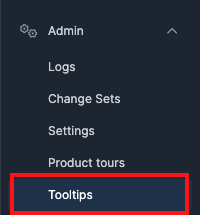
Access Tooltips via the left hand main menu - Admin - Tooltips.
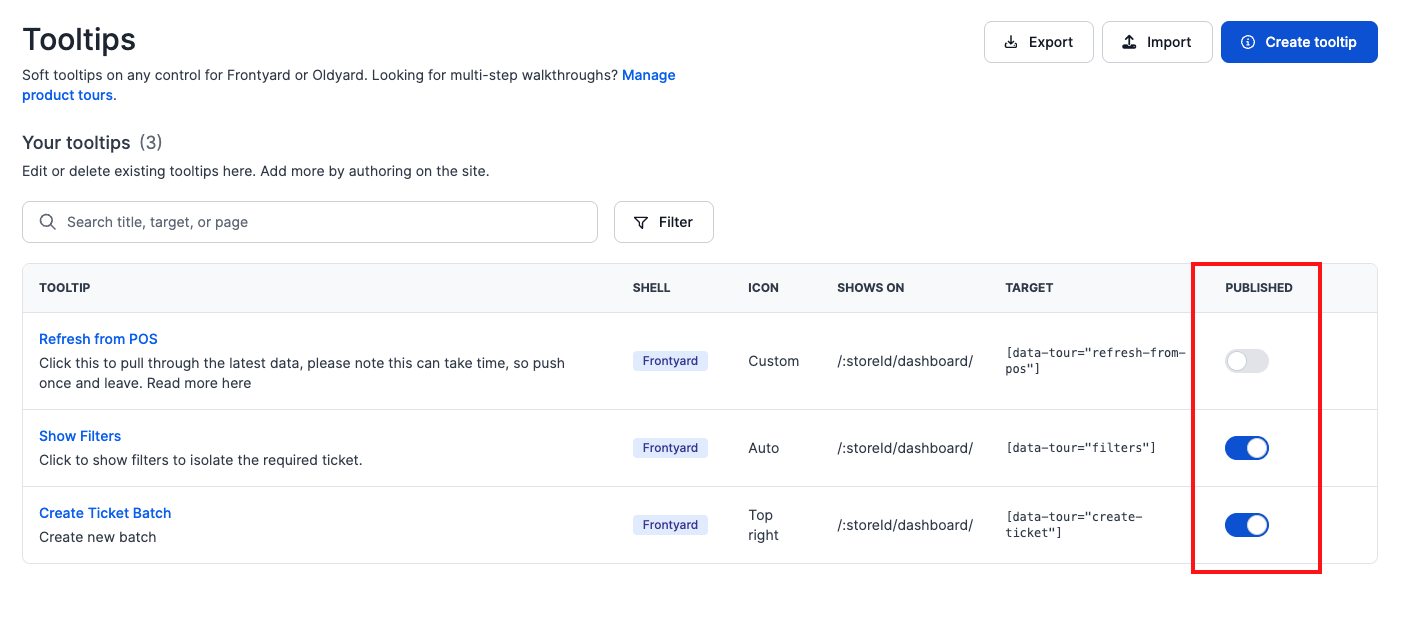
On the home page you will see three buttons on top right hand side of the centre screen.
- Export & Import - these are available for you to easily create and play around with the tooltips in your UAT environment but then import them into your production environment without having to rebuild them.
- Create tooltip - Click here to build each tool tip
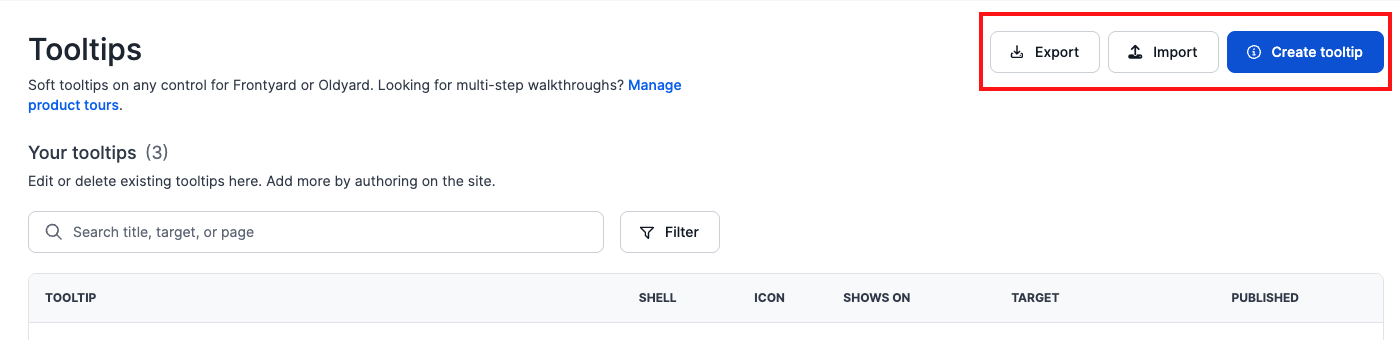
To Create a tooltip click on the Create tooltip button
It will open up a new screen an automatically provide a hover tracker that highlights each 'target' with a yellow box. This target is an anchor for there you want to place your tool tip for users.
Select the area you want to target as a tooltip and click on that element.
This will open a new window to the right hand side of the screen where you can write your content and align as required.
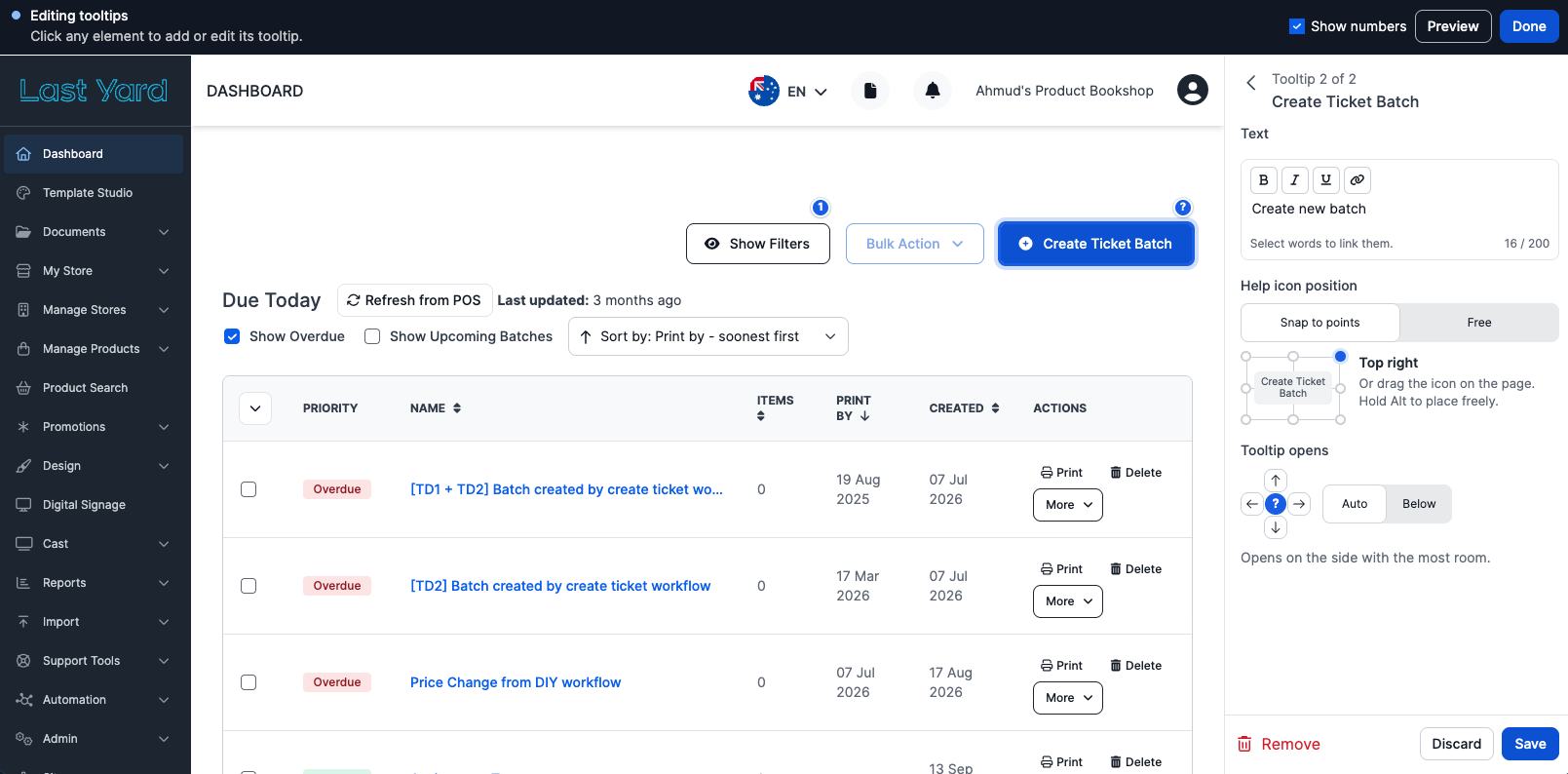
You can use elements in your text such as; Cold, Italics, add a hyperlink.
Save your tooltip
At the top of the page you will see you can Preview the tool tip live.
Click Back to editing once ready to save and finalise.
Click Done once you are happy with the Tooltip, saved and ready to build your next tool tip.


Show Numbers is where for when you have multiple tooltips and you want to see where each tip is located. It will list them on the right of the screen for you.
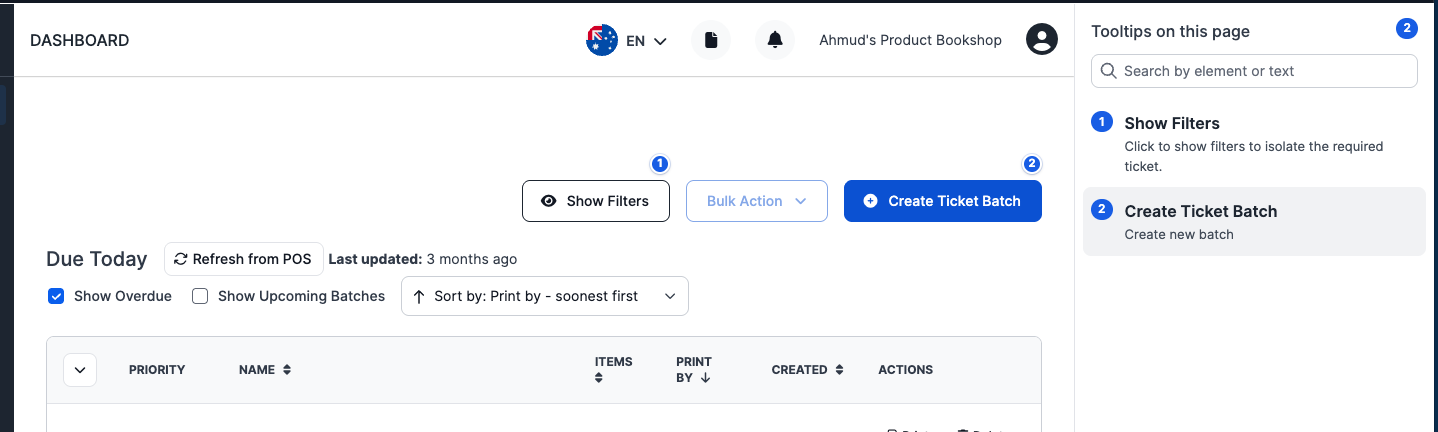
Once save and done it will return you to the home screen where all your tooltips are listed and you can maintain what is published via the toggle.
Was this article helpful?
That’s Great!
Thank you for your feedback
Sorry! We couldn't be helpful
Thank you for your feedback
Feedback sent
We appreciate your effort and will try to fix the article